Step 1: Confirm Household Setup
Log in to your YMCA Calgary Portal.
Note: If you have visited a YMCA Calgary location in the past, you likely already have an account with us. If you cannot remember your login details, please contact us and our customer service team will assist you with getting access to your existing portal account.

On the home page, locate the “My Household” box. Confirm that all immediate family members residing in your household are listed under My Household.
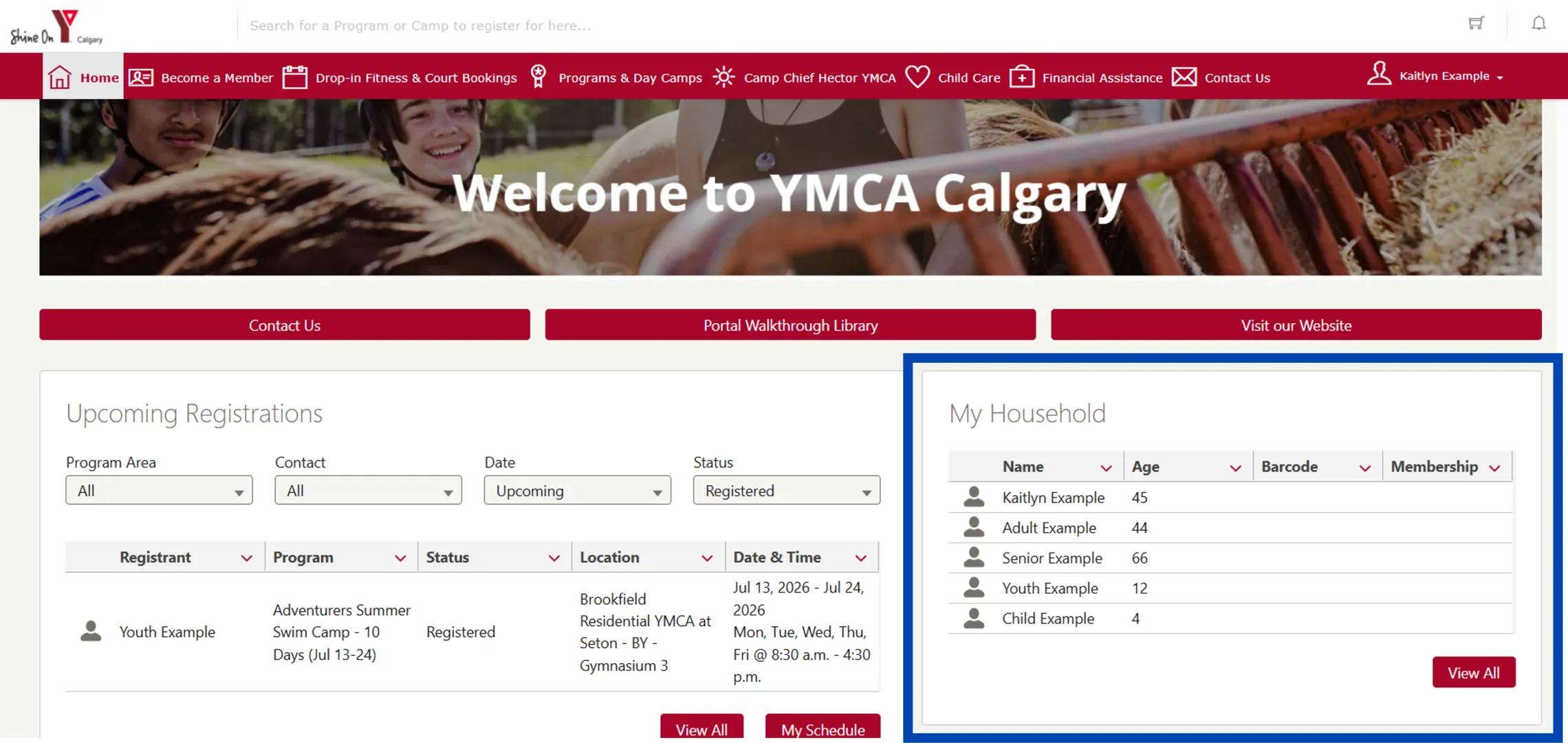
If you need to add additional members to your account, click View All at the bottom right of the “My Household” box.
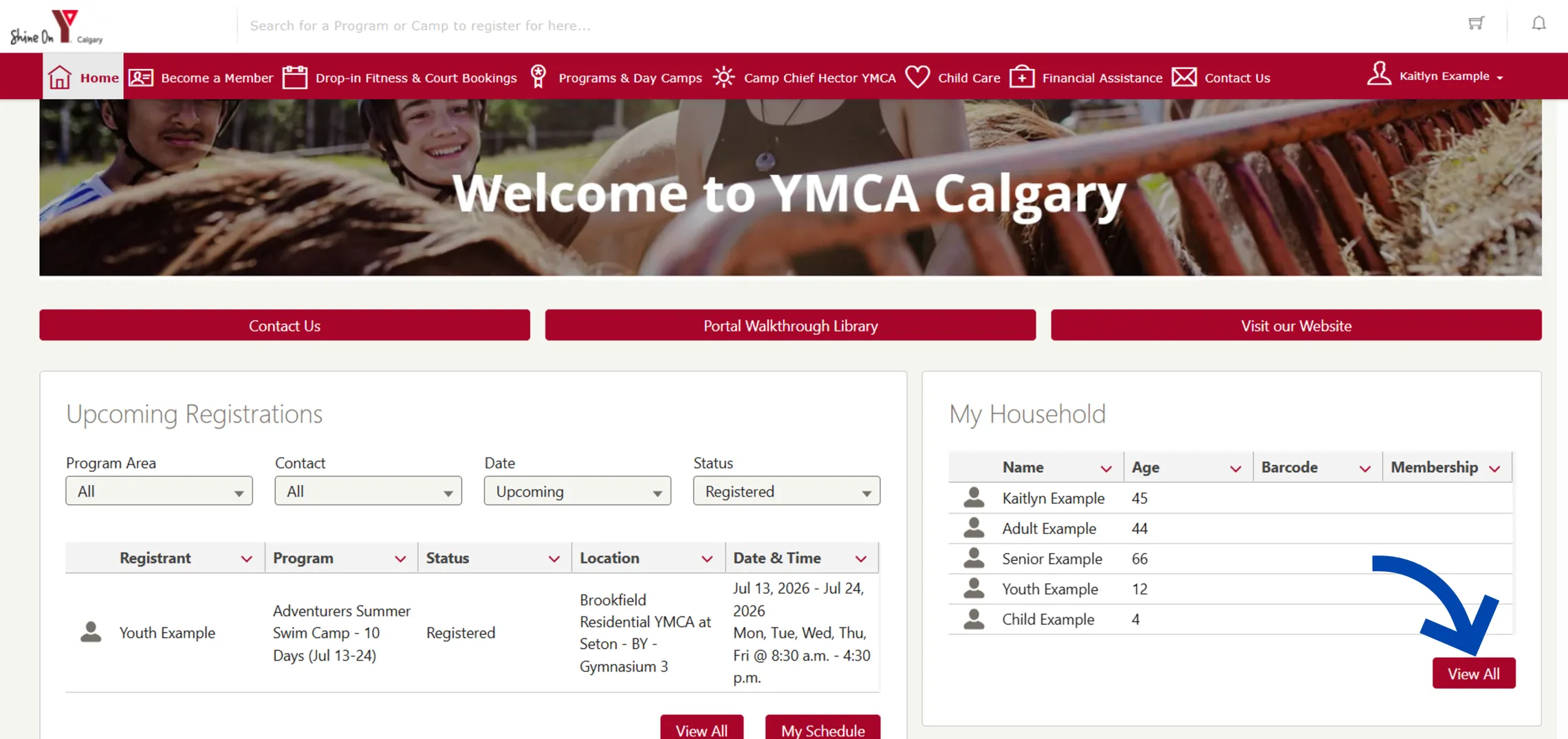
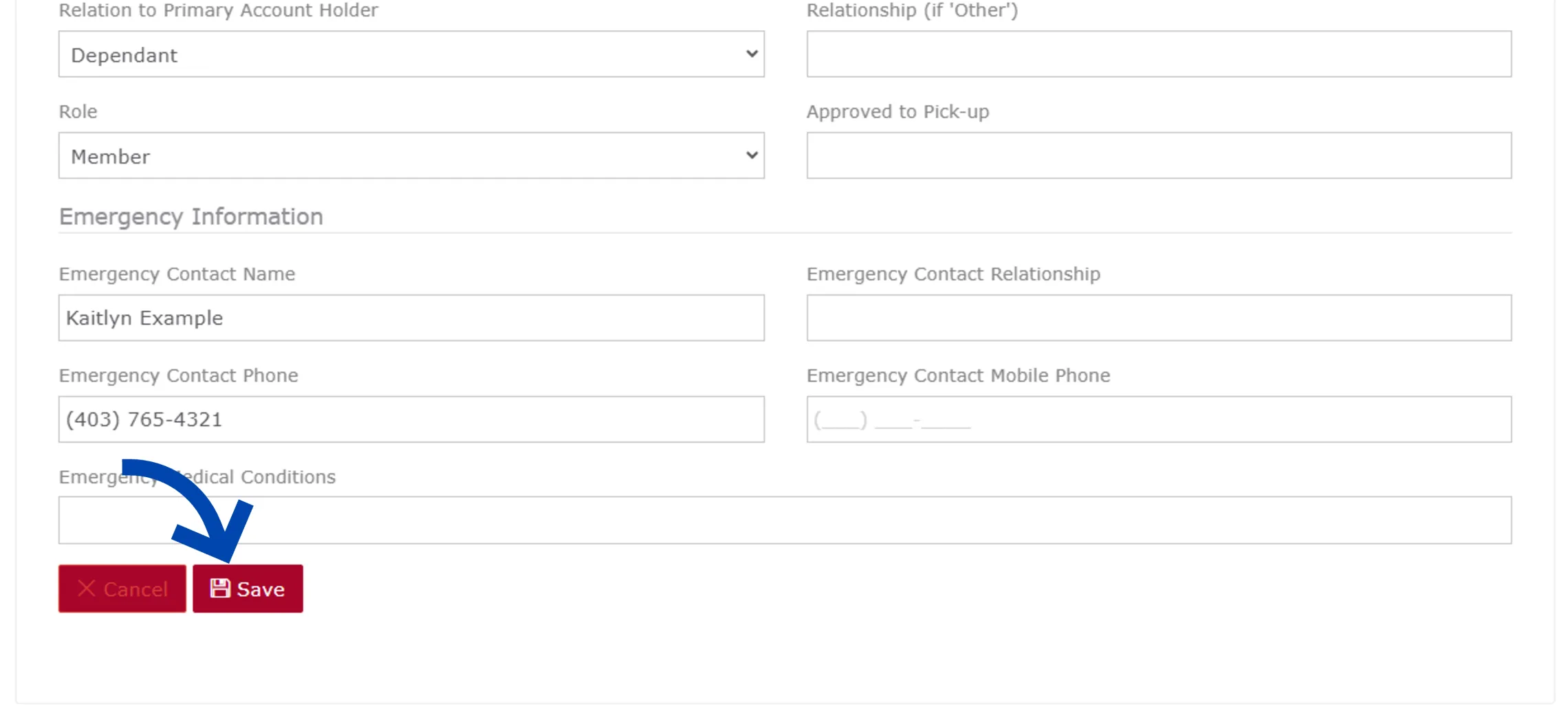
At the bottom of the Household Contacts list, click the Add additional button.
Fill in the required information (outlined in red). Then, click Save.
Note: If the Save button is greyed out, you missed one of the required fields. Confirm that you have entered all of the contact’s information.
Step 2: Submit Online Application Form
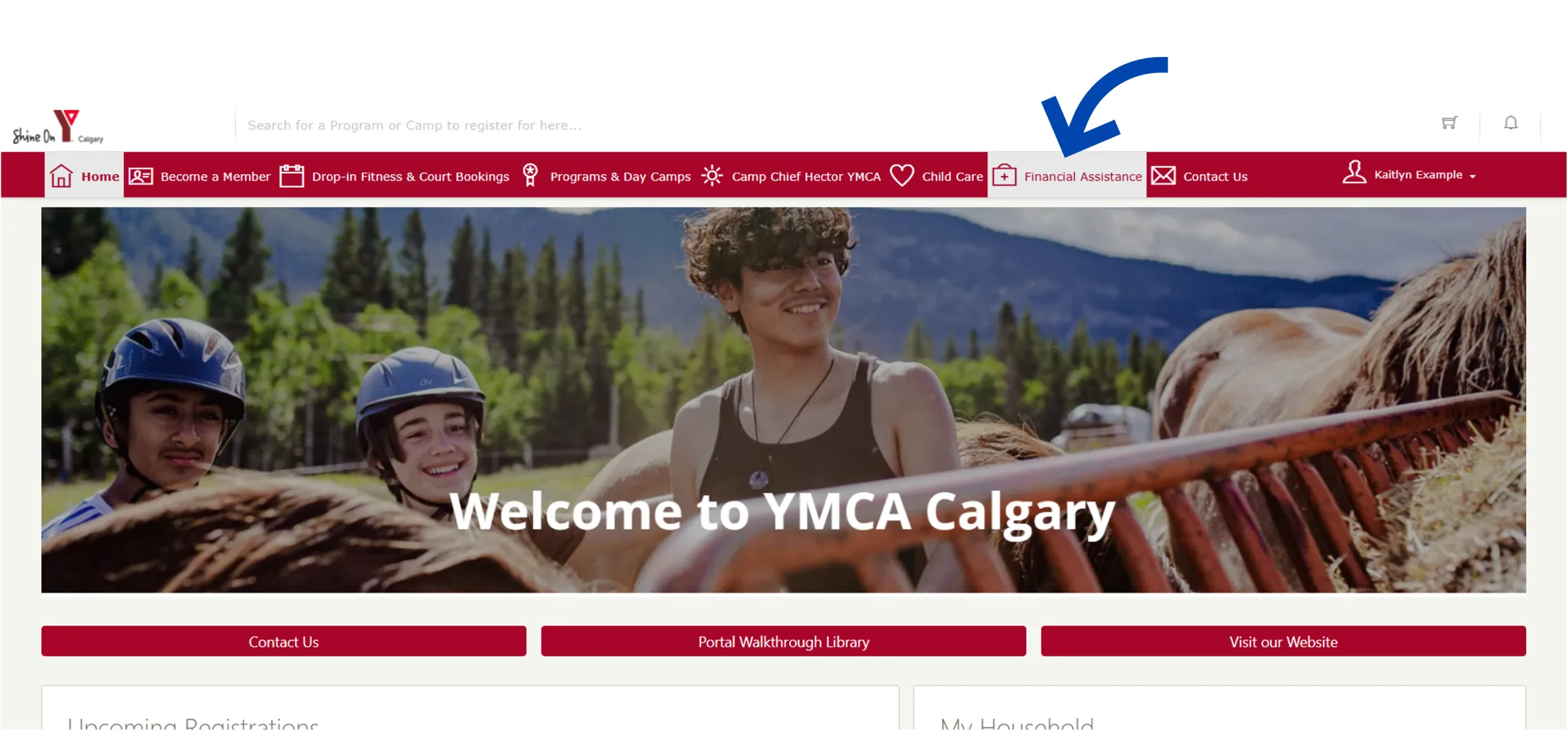
From your YMCA Calgary Portal, navigate to the Financial Assistance tab.
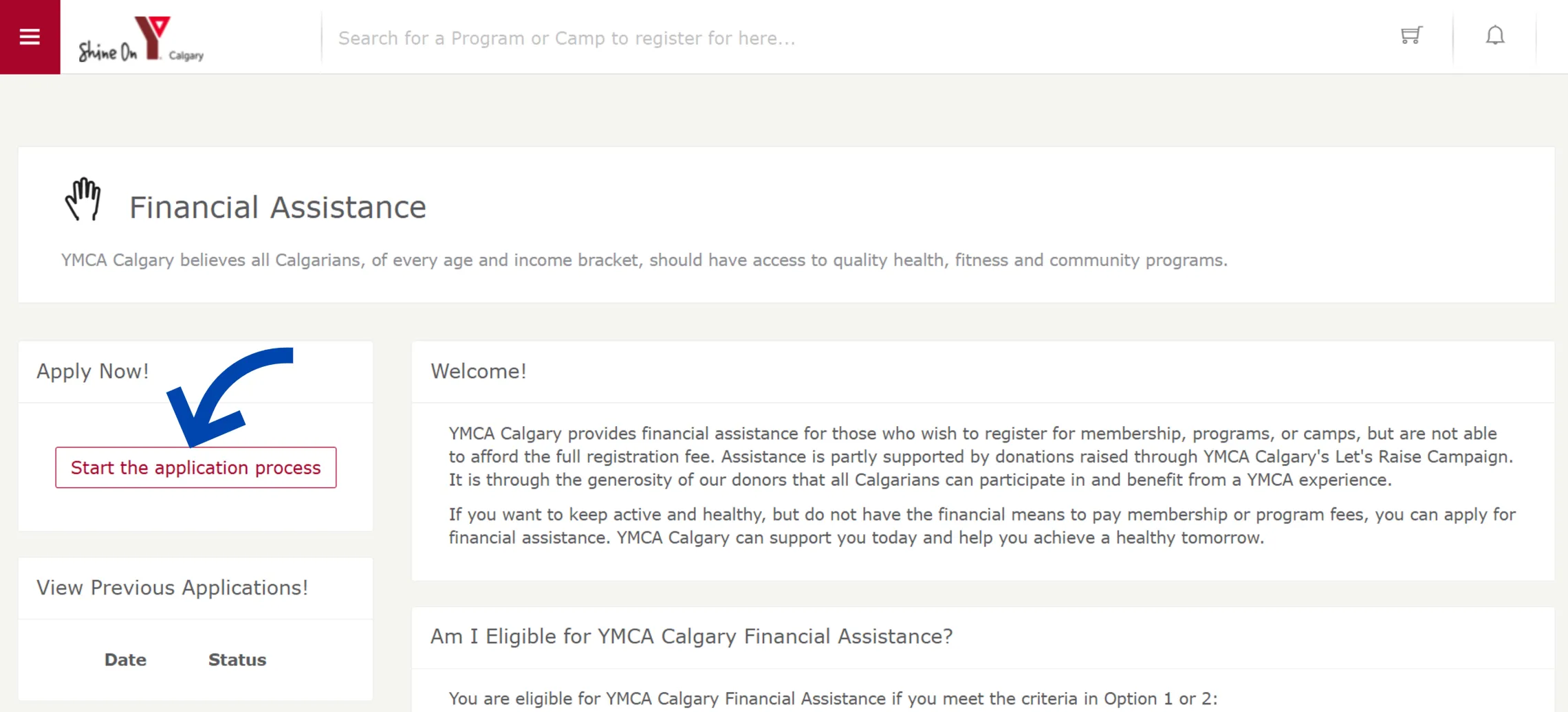
Once you’re ready to complete your form, click Start the application process on the left.
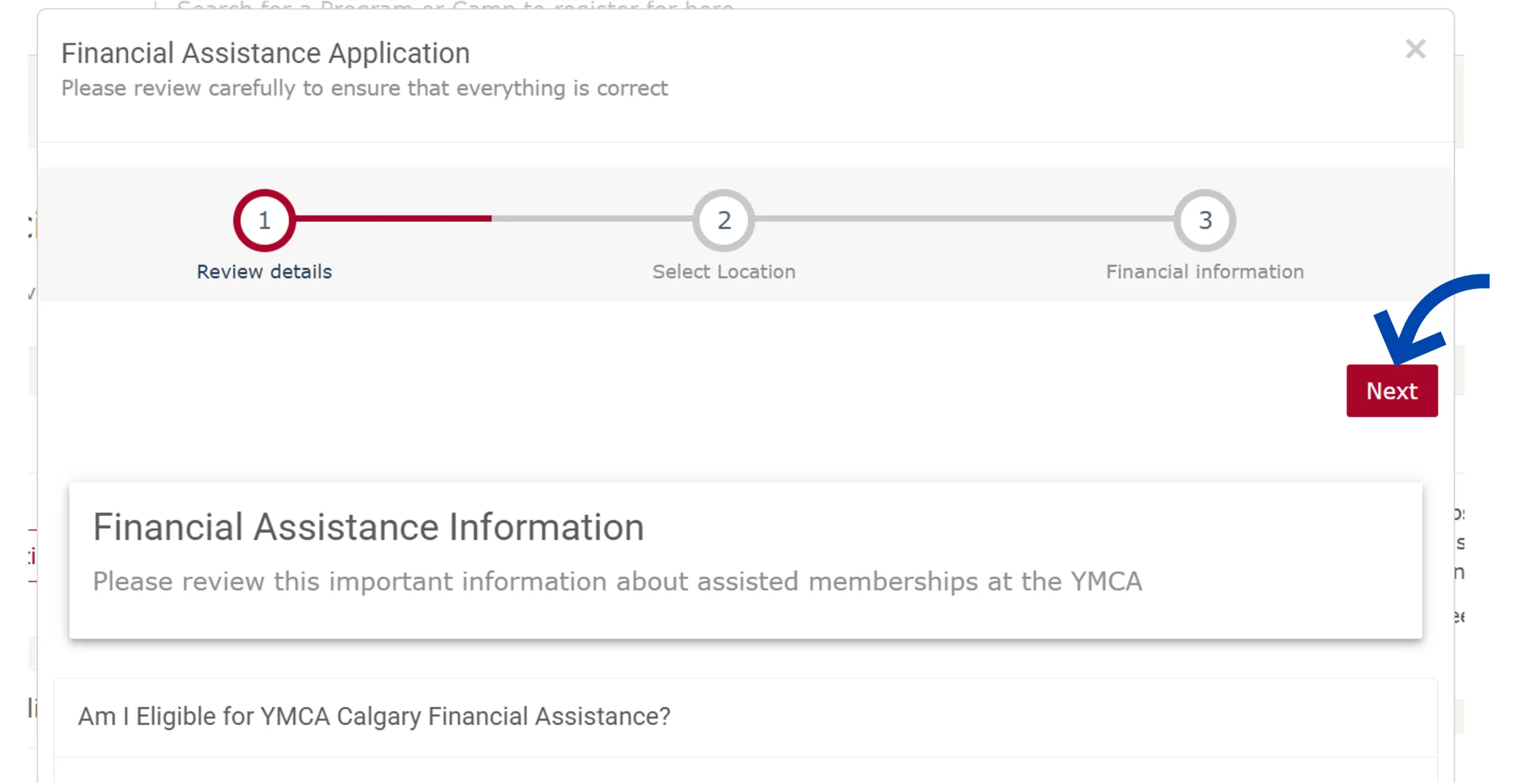
The first page reviews the process for setting up YMCA Calgary Financial Assistance. Review the information, then click Next.
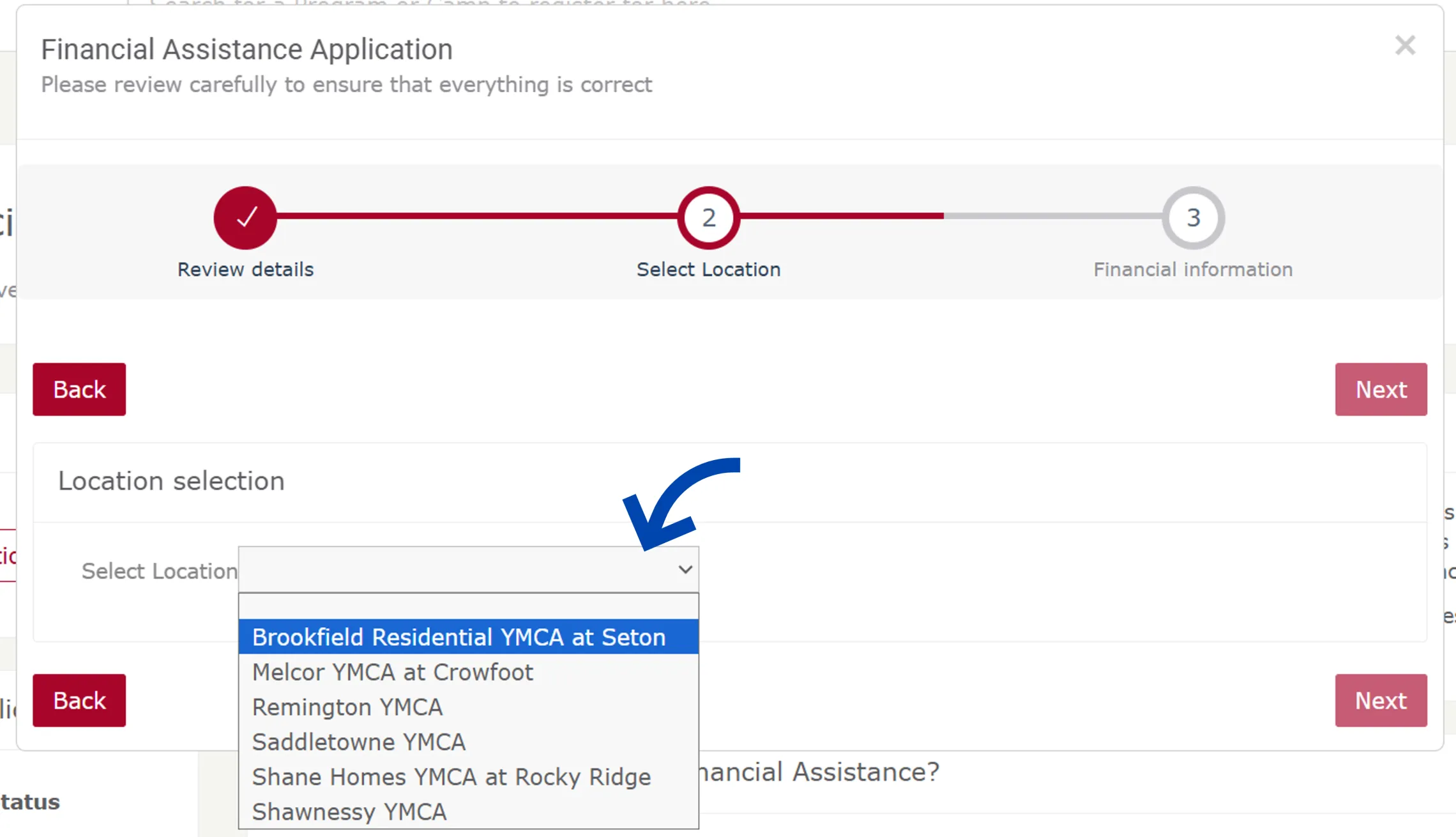
Select your YMCA Calgary branch from the location dropdown list. Then, click Next
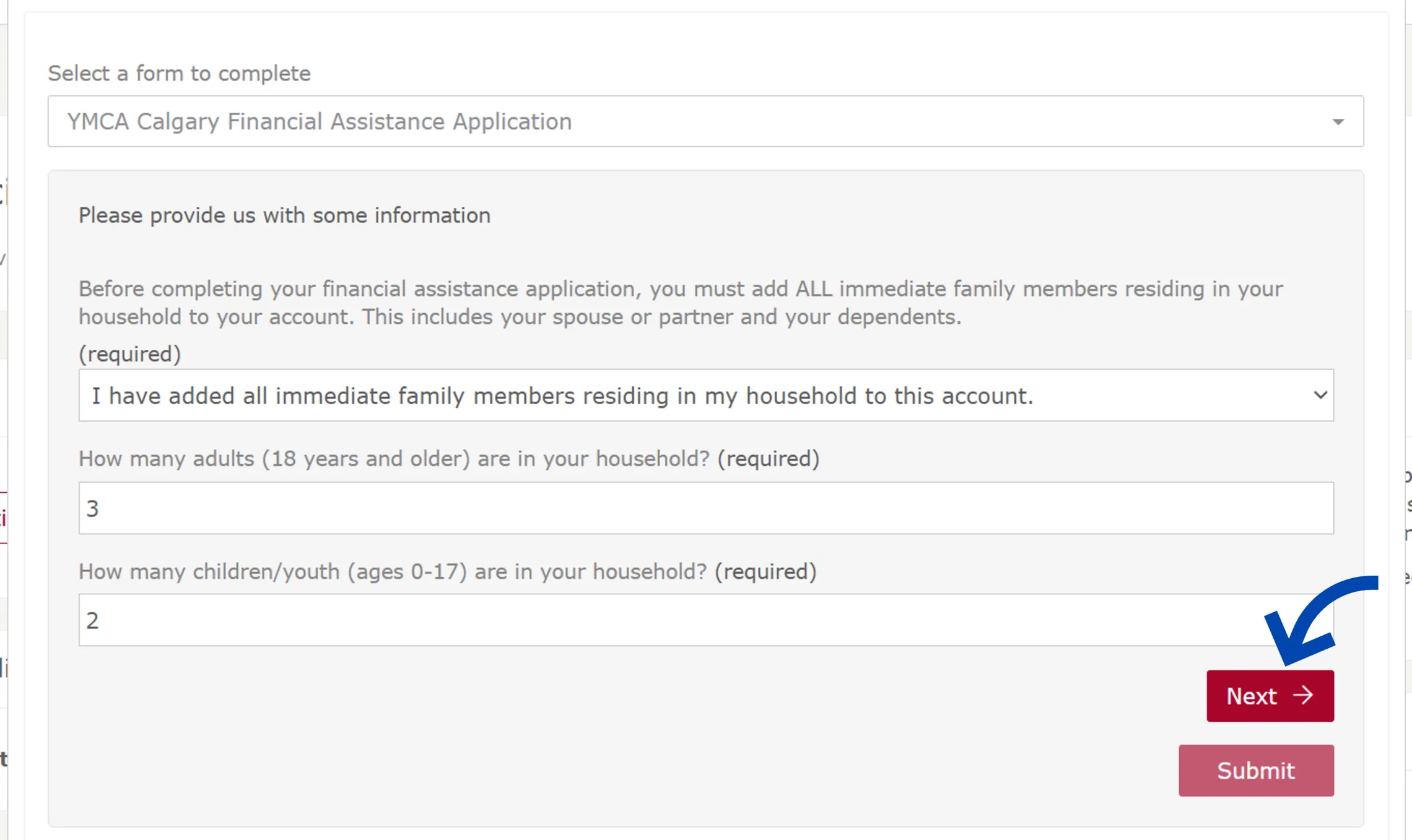
Confirm your household setup and indicate the number of adults and children/youth included in your application. Then, click Next
Note: Make sure that all adults and children/youth are added to your account (see Step 1).
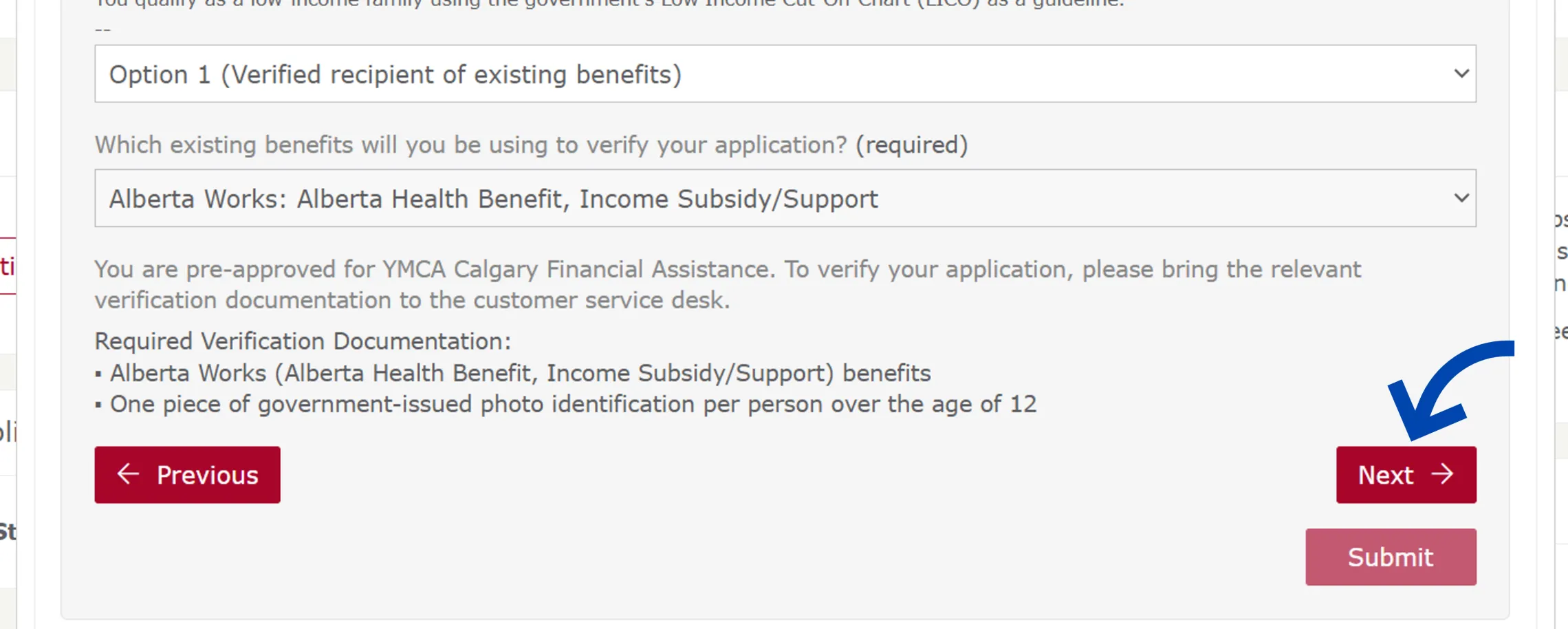
Select your application eligibility option. Then, click Next
Note: If you select Option 1 (verified recipient of existing benefits), you will also need to select the existing benefits you will use to verify your application.
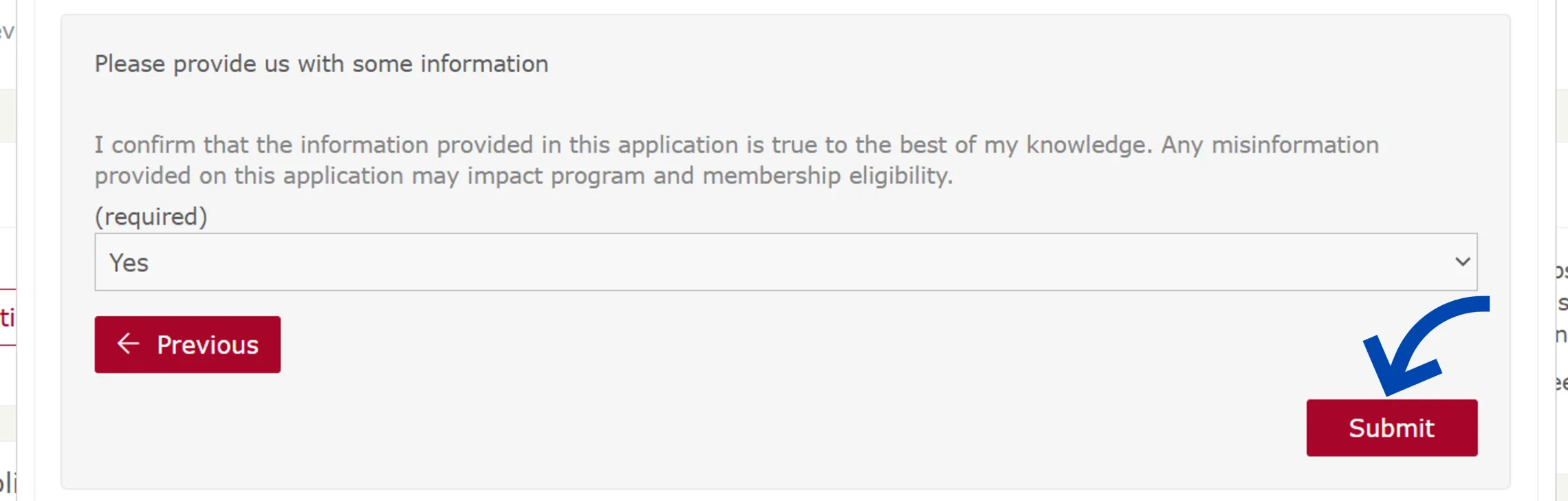
On the final page, confirm that the information you have provided is correct. Then, click Submit to complete your form.
You will receive a confirmation message when the form is submitted. Click OK to return to the financial assistance page.

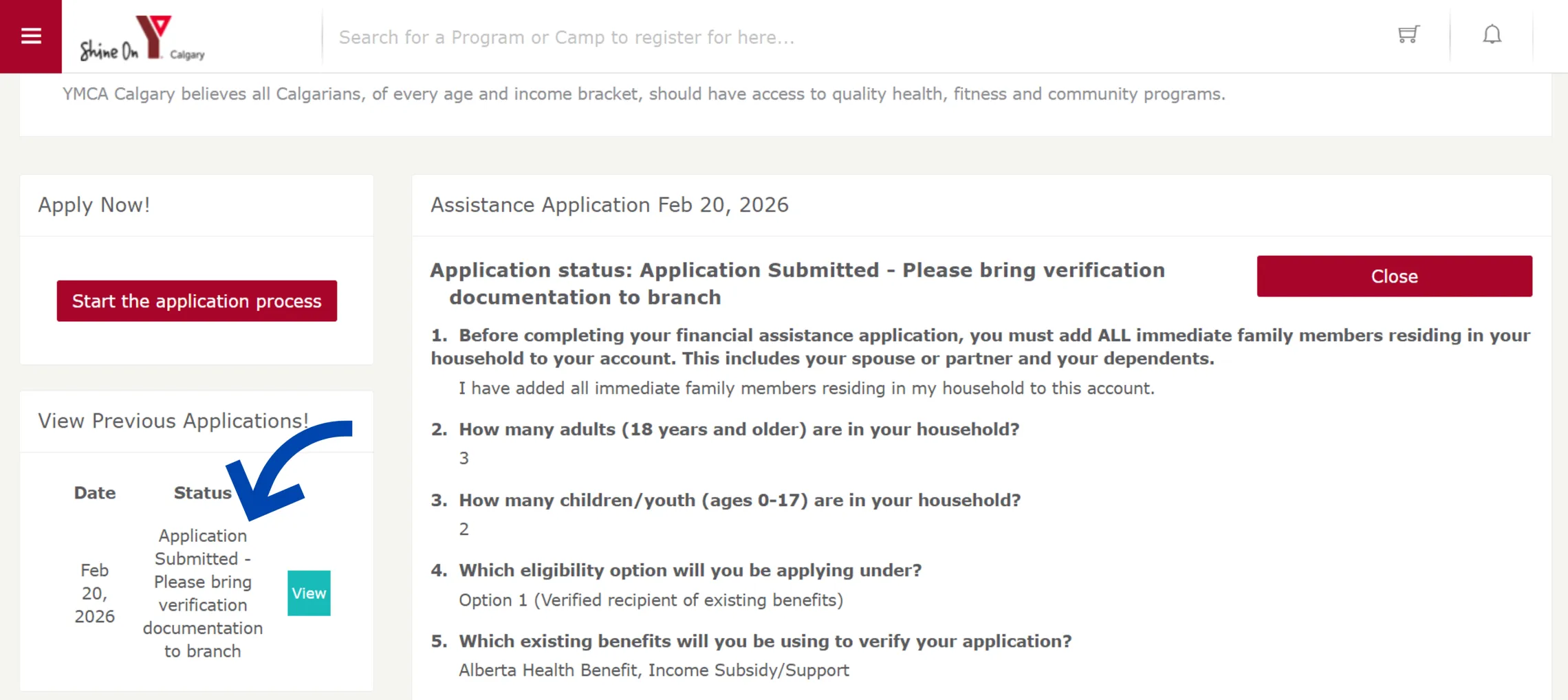
Under the “View Previous Applications!” section, you will see the status of your current application.
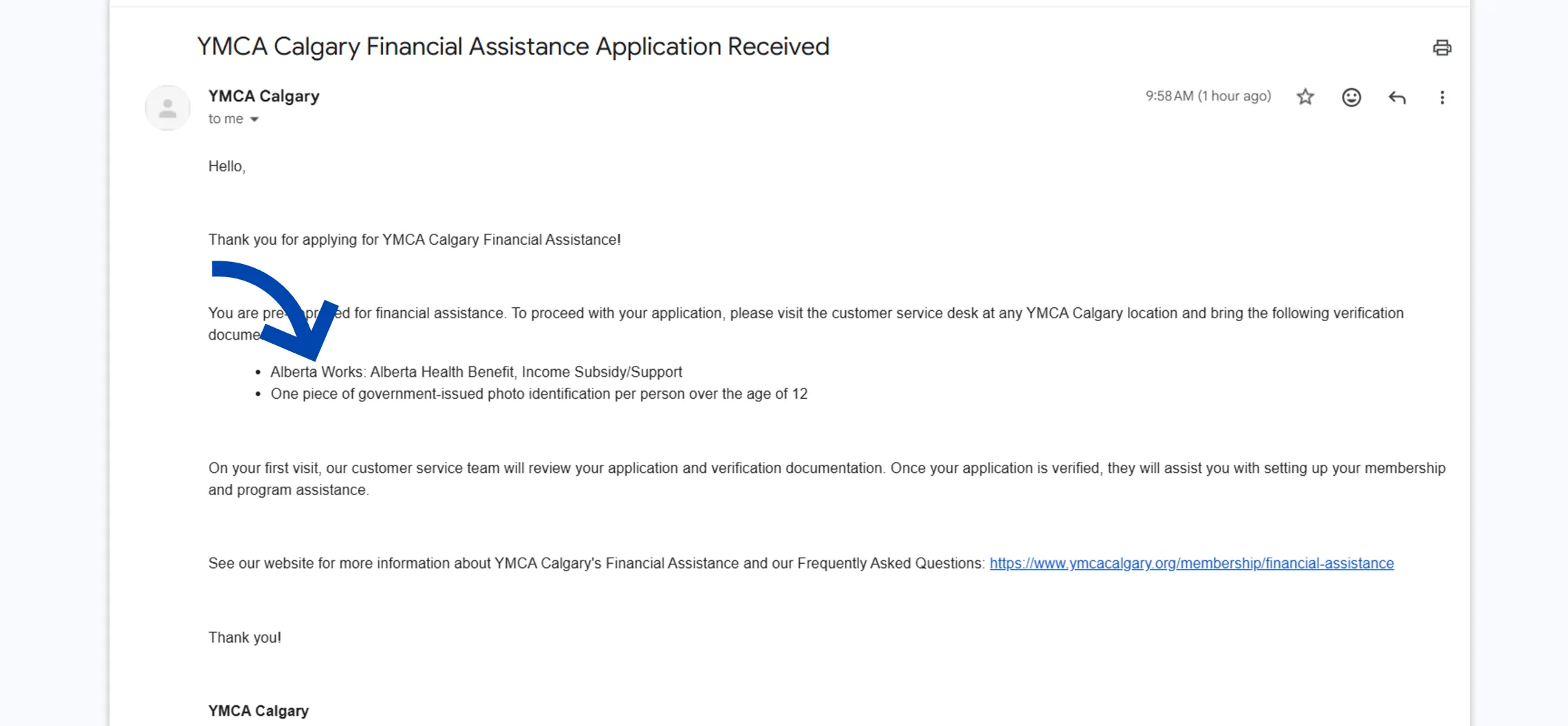
Note: You will also receive an email confirmation that explains the next steps and required verification documentation.
Step 3: Verify Your Application at the Customer Service Desk
After submitting your form online, the application must be reviewed and verified in-person at your branch’s customer service desk. Bring the required verification documents to the desk on your next visit.
Note: After you submit your form, you will receive an email confirmation to your account’s primary email address. Check your confirmation email for a list of the required documentation to verify your application.